
There are two different types of filters you can use to display only the invoices you want to see right now: a Column Filter to select which values you want to see in each column, and a Coding Filter to display only invoices with a specific coding.
Column Filter
To the right of each column header is a filter icon  click on it, and a small form will open to filter the values in the column. The forms look slightly different depending on the type of values the column contains. Enter the values you want to filter the column by and click Use.
The filter available for the Company column is the same as in the drop-down list at the top of the page.
When a filter is active, this is indicated in three ways:
- On columns with an active filter, the icon turns blue

- The number of items in the queues is displayed as two figures: the filtered count and, in parentheses, the total count

- An icon appears next to the number of invoices below the list
The numbers show the number of invoices after the current filtering and the total number of invoices in the queue.
Coding filter
Start by selecting a company from the drop-down list, then click  on the right, and a panel will open:
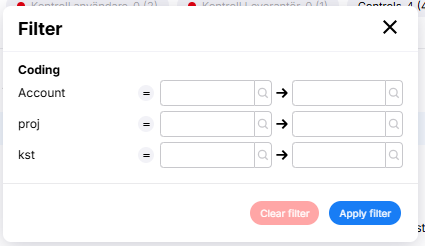
Enter the values you want to filter by. Use  to exclude values
When you have made your selection, click on 
When a filter is active, it is displayed in three places in the WorkQueue window:
- The icon on the filter button turns red

- The number of queues is shown with 2 numbers, the filtered number and in brackets the total number.

- An icon appears next to the number of invoices under the list

The numbers show the number of invoices after the current filtering and the total number of invoices in the queue.
To remove the filter, open the Filters panel and click on 