To open the Contract Dashboard, first click on the Dashboard icon in the black column and then on the Contract heading.
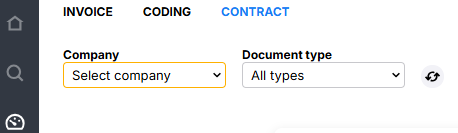
At the top of the page, there are two drop-down lists: Company and Document Type.
- Company: This shows the companies you have permission to view. Permissions are set on the role form, on the tab Report and Search access rights - “Authorized to report.”
- Document Types: This shows the document types you have permission to view. Permissions to view document types are set on the document type form under Contract Administration.
Overall statistics

The top “blocks” show the number of documents in the selected companies and document types.
 | Active documents Shows all active documents for the companies and document types selected at the top of the page. |
 | Inactive documents Shows all inactive documents for the selected companies and document types. |
 | Document types Shows a list of all document types and the number of documents per type in the selected companies. Select a document type to see active documents within that type. |
 | Companies with documents Shows the selected companies and the number of documents per company. Select a company to see its active documents. |
 | Vendors with documents Displays all vendors that have linked documents. Select a vendor to view its active documents. |
Field monitoring
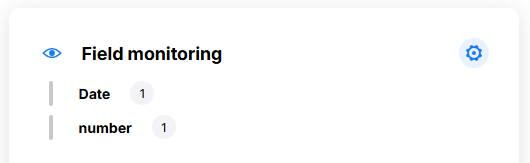
In the Field monitoring panel, you can select fields that you want to keep an extra eye on. The settings are personal and easy to configure. Click  to open a list of the fields available in the selected document types.
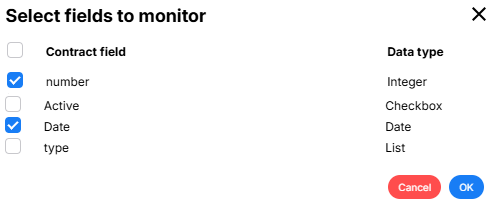
Check the fields you want to see and click OK.
The panel shows the fields you have selected with a number behind them. The number represents the number of different values saved in fields with that name.
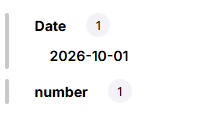 | Click on the field name to show the values in that field for the selected document types. Then click on a value to display a list of the documents that contain that value. |
Reminders
The reminders registered on documents are compiled in two panels.
The first panel concerns when reminders are sent.
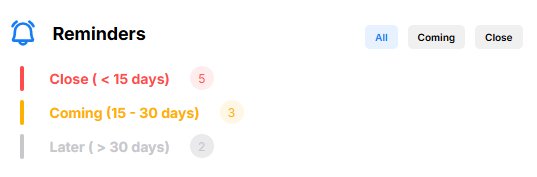
The panel has three headings
- Coming (<15 days): This panel shows documents that have a reminder within two weeks. Documents whose reminder date has passed are also displayed here. To remove these from the list, the date on the document must be changed to a date in the future.
- Upcoming (15-30 days): Documents whose reminders are set to be sent within 15-30 days are displayed here.
- Later (>30 days): Documents with a reminder date more than 30 days in the future are displayed here.
Click on one of the headings and a list will appear with the documents that have a reminder set within the selected time span.
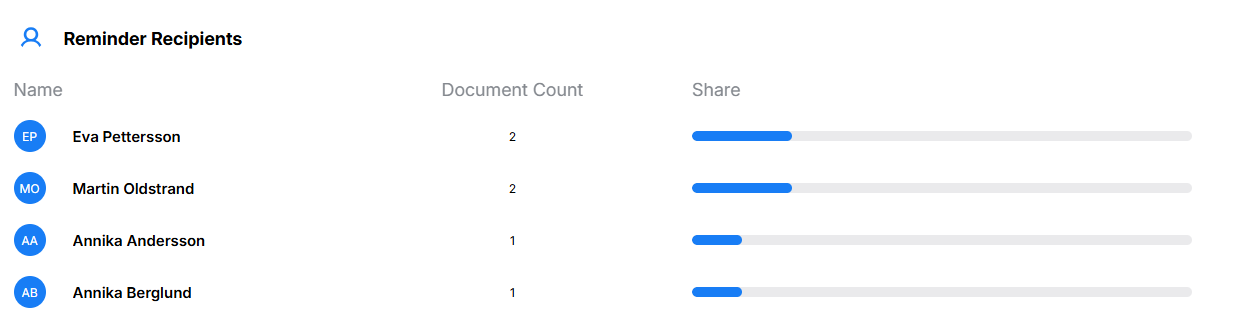
Reminder Recipients
The second panel provides a list of users who are recipients of reminders. Click on the name to bring up a list of documents for which the user is the recipient of a reminder.
The distribution shows the user's share of the total number of reminders for selected companies and document types.