
Click  in the invoice window to open the Send-form.
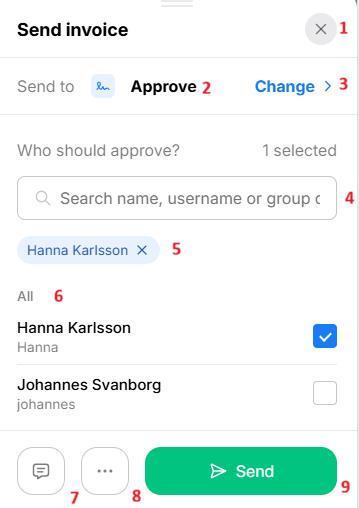 |
|
Avaliable destinationsWhen you click Change >, a list opens showing the destinations to which you can send the invoice. Under Invalid Destinations, you'll see the destinations to which you currently cannot send the invoice, along with an explanation of why it's not possible. | 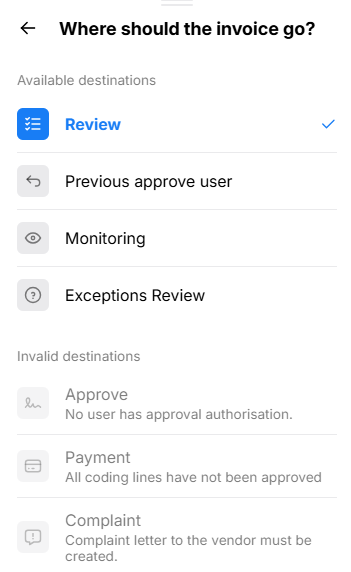 |
MessageSteps with a recipient list: Tap the message icon at the bottom of the form. Write a message and click Done. If a message already exists, the icon is blue. | 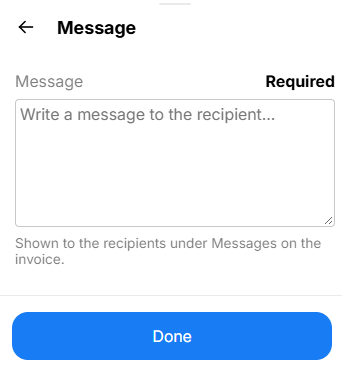 |
| Step without a recipient list: The message field appears immediately. | 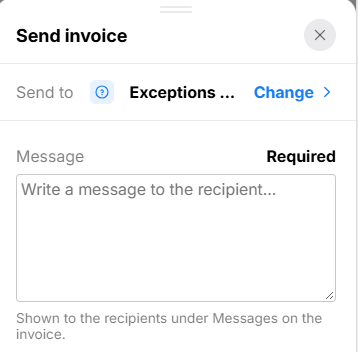 |
Additional actionsClick You can add a Copy Recipient and a Workflow Template by clicking > at the far right of the respective row. If an option was selected in a previous step and cannot be changed, it will be marked with a padlock. If you are awaiting a credit memo for this invoice, select the option The invoice must be credited; the invoice will then be moved to the Await Credit queue once it has been processed. | 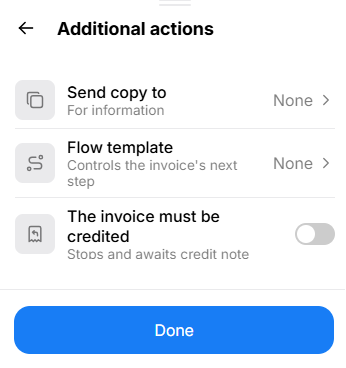 |
 is displayed instead, this means the invoice can only be sent to the selected step.


 at the bottom of the form to make additional selections.