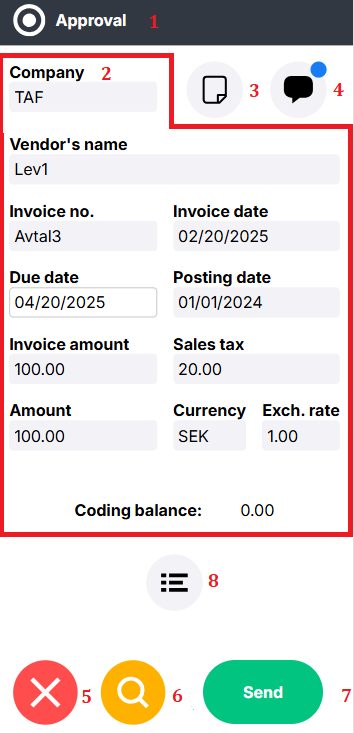
 | 1. Status The top shows the status of the invoice. 2. Invoice information These fields display some of the information found under Invoice information. Depending on system settings, some of the fields may be editable. If you need to change values in other fields, the invoice must be sent to Invoice Exceptions Review. You can read more about this in the article Correction of invoice information.3. Invoice image Click 4. Message Click on 5. Cancel Click Click  if you want to send the invoice to Invoice Exceptions Review. A new page will open where a message must be written before the invoice is sent. 7. Send If you want to forward the invoice, click
This will open the send form so you can choose where to send the invoice. Read more about the form in the article Mobile Send Form 8. Coding Click on the icon to look at the coding of the invoice. Here, you can also review and approve individual coding rows. |
 and the invoice image appears. Click on the cross and the image will close.
 and
 to close the invoice and go back to the queue window. If you have made changes to the invoice, you will be given the option to save them.

Messages
To read and write messages, click on the icon that looks like a speech bubble  . If there is a blue dot on the speech bubble
 , this indicates that there are messages on the invoice.
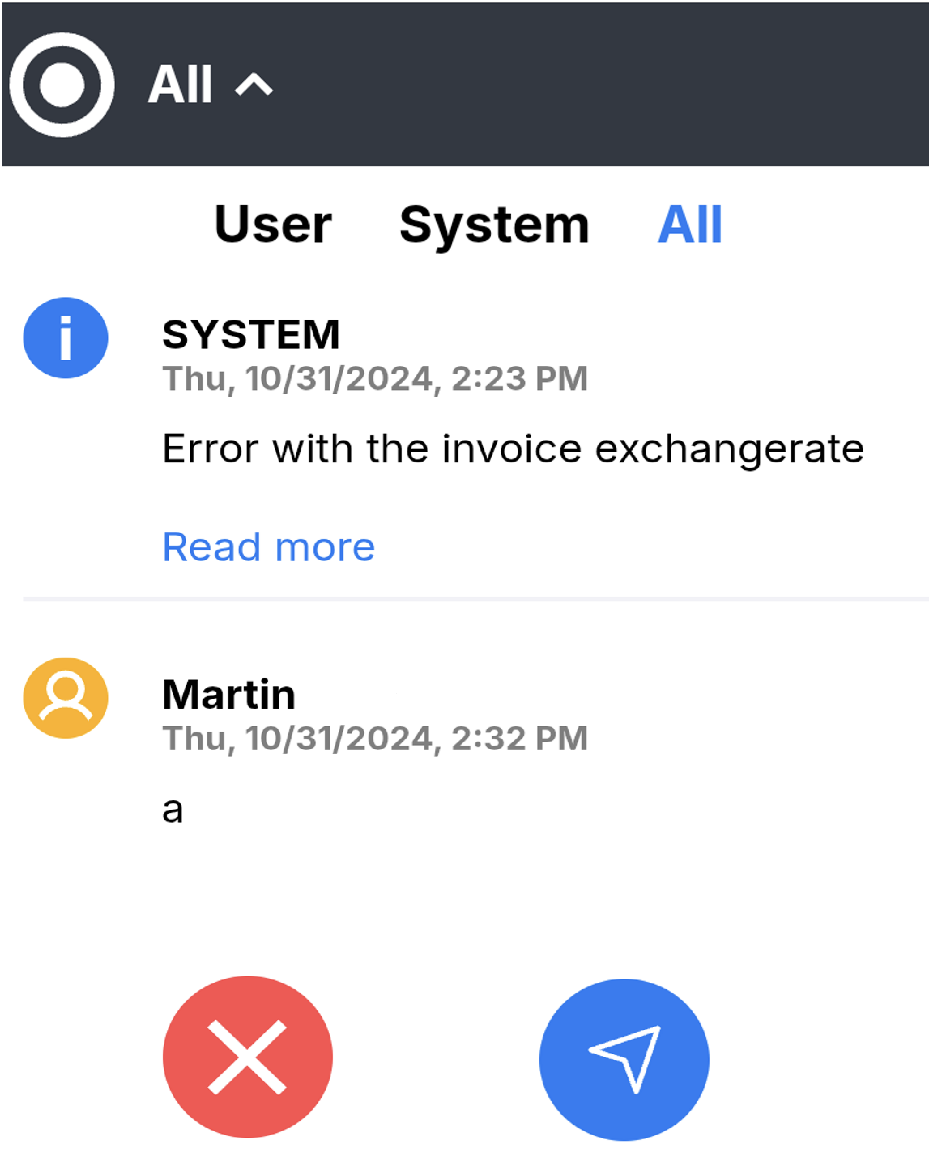
View MessagesSelect the type of messages you want to view by clicking the black list and choosing an option from the menu that appears. Messages are displayed with different icons for system and user messages. Click |
|
Write messagesClick Type your message and click on Click |
|
 to close the window and return to the invoice.
 to write new messages and a new window will open.
 .
 to cancel and go back to messages.