
When you open an order invoice, the system checks whether there are other active invoices with article lines linked to the same order number—either via the order number in the invoice header or at the line item level. If such invoices are found, a red icon appears on the invoice screen that you can click to see which invoices are affected.
 | No active invoices with linked article lines were found |
 | One or more active invoices with linked article lines were found |
 | This icon appears at the far left of the article lines that are linked to another invoice. Click it to display a list of invoices linked to that line. |
View linked invoices
- Open the invoice you are working on.
- If the red icon appears, click it.
- A list of relevant invoices will appear.
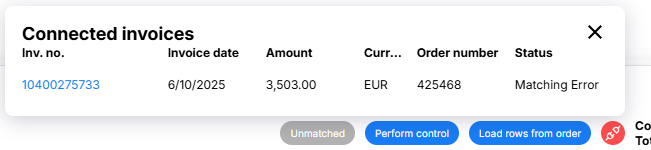
- Click an invoice number in the list to open the invoice.
Release Item Lines
The option to release lines is only available when the invoice is in the CheckOrder or CheckArticle stage, and only when you’ve navigated there via the list above.
- Open the invoice using the link in the list of linked invoices, as described above.
- The line items that matched the order number are automatically selected.
- Adjust the selection if you wish - you can select additional lines or deselect lines.

- Click

- The selected lines are released from the order match and can be matched again.