
Click on  in the left-hand menu column, and a new tab with the search form will open.
Click on the Order tab there.
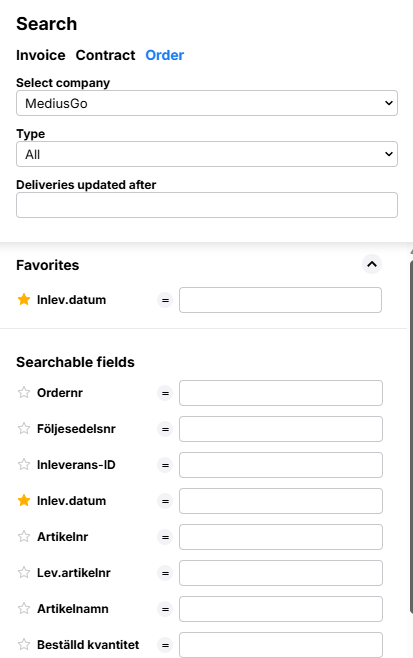 | |
| Select company: Select a company from the drop-down list. The selected company will be saved for the next time you open the form. | |
| Type: Choose to display only Orders, only Goods receipts, or All. | |
| Deliveries updated after: Enter a date to display only those deliveries updated after this date. | |
| Favorites: Click the star to the left of the search fields to add them to your favorites. | |
Searchable fields: Which search fields and columns are displayed depends on the purchasing system used and is determined in the administration tool (System Configuration-Import-Purchasing Integration-Item Line Order) during system setup. |
Search Results
The search results are displayed to the right of the search column, and the columns shown correspond to the available searchable fields. Sort the search results by clicking on a column header
To the left of the search results, there is a column that displays an image icon  if the current row is linked to an invoice in the system. Click this button to open the invoice to which the item line is linked.
Above the search results, a summary of the results is displayed, and below the list, you can select how many rows to display.