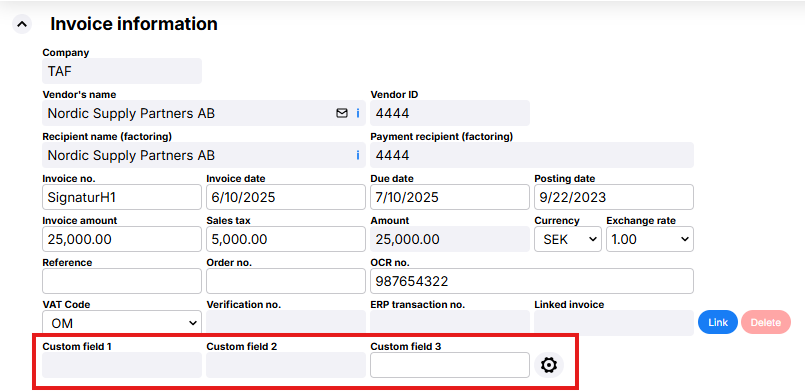
If you map values to custom fields (extraField1–3) during invoice import, these can be displayed directly at the bottom of the Invoice information section and used to automatically populate coding dimensions. This makes it easier to verify imported values and reduces the need for manual entry.
Start by enabling the UseInvoiceExtraFields parameter under System Configuration - System Settings - Functions in the administration tool.
A new button will then appear at the bottom of the invoice header: 
Click it, and a new form will open to configure the settings.
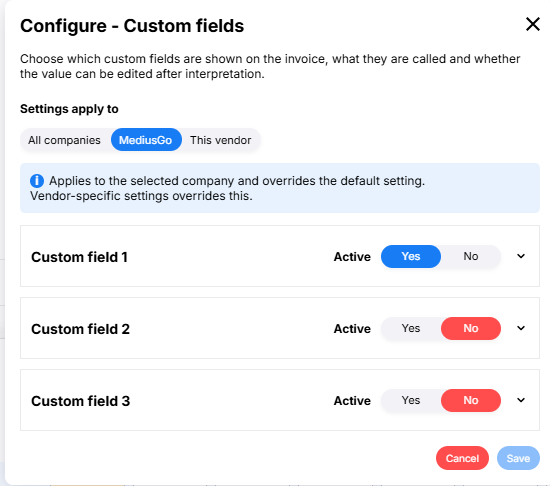
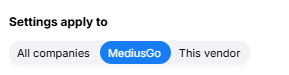
- All companies: This setting applies to all companies
- Company name: This setting applies to all invoices in this company
- This vendor: This setting applies to all invoices from this vendor.
If a custom field has been configured at multiple levels, the settings are applied in the following order:
- Vendor
- Company
- All companies
Vendor-specific settings therefore have the highest priority.
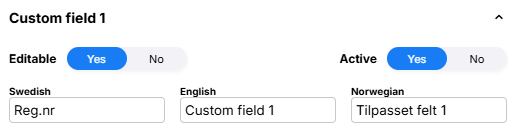
- Editable: Select whether the value can be changed after the invoice is imported or whether the interpreted value should apply.
- Active: Select whether the field should be displayed in the invoice information.
- Labels: Enter an appropriate label for the field in the languages you use. If no custom label is specified, the default names Custom Field 1, Custom Field 2, and Custom Field 3 are used.
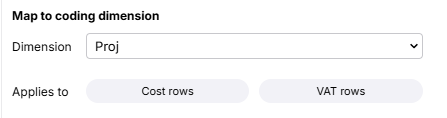
If you want the value in the field to be copied to coding rows, select this option in the Map to coding dimension section. Select which coding dimension to link to the custom field and specify whether the value should be used on cost rows, VAT rows, or both row types. A coding dimension can only be linked to one custom field. Dimensions already in use by another custom field cannot therefore be selected.
During automatic coding, the selected dimension is populated with the value from the custom field if the dimension has no value. Existing values are not overwritten. When the user creates new coding rows, the dimension is also automatically populated for the row types selected in the settings. Existing coding rules and automatic coding take precedence over the mapping from custom fields and are not affected.
Here’s what the custom fields look like on the invoice
When a custom field is enabled, it appears at the bottom of the Invoice information section. If the field is marked as editable, the user can change the value directly on the invoice; otherwise, it is displayed for informational purposes only. Open the configuration form by clicking  under Invoice information.