There are a few things you need to get started with Genie Smartflow.
Genie Smartflow uses MediusGo Capture; if you aren't already using it, we have a guide to help you get started easily.
Permissions
Permissions to administer Genie Smartflow are set on the role form.
Go to Administration Tool  - Organization - Roles. Open the role(s) that should be able to administer and check the Genie admin box at the top of the form. The permission applies to all companies to which the role belongs.

The people included in the roles you have given permission to administer Genie will see a new icon in the black column on the left. 
Activate companies
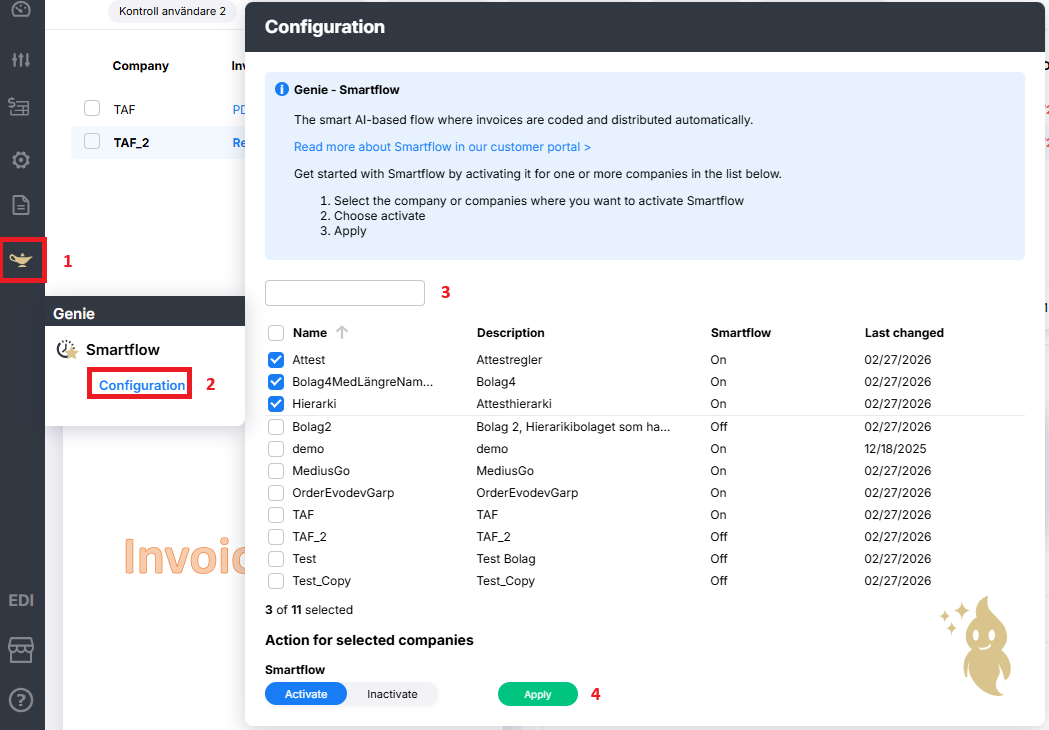
- Click on the icon with the lamp
- Select Smartflow - Configuration
- Select the companies where you want to activate Smartflow. The text box can be used to filter the list and the box next to the heading is used to select all.
- The lower section is activated when you have selected a company. Select Activate and click Apply.
Once Genie Smartflow has been activated for the companies, the Vendor Settings form will be available on active invoices for users who have Genie admin permissions.
Inactivate company
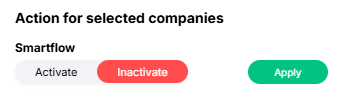
If, for any reason, you want to inactivate Smartflow for a company, follow the same steps as above, except that you select the companies you want to inactivate and select Inactivate before clicking Apply.