
The Invoice tab contains graphs show invoices in process, your largest vendors and statistics on the automation of your invoice flow.
At the top of the page, you can choose which companies you want to see and whether you want to show all invoices or distinguish between order and cost invoices.
All graphs can be clicked on to open a list of the invoices, the list can then be exported in the same way as the search results.
The graphs on the tab Invoice are:
- Approaching due date
- Assigned invoices
- Invoices in stage
- Processing time
- Vendors
- AutoCoded
- AutoFlow
- Touchless
- Average handle time
Approaching due date

Here you can view invoices by due date.
Choose the number of days forward you want to see.
The graphs show the amount for each date, if different default currencies are used in the selected companies, one graph/currency is displayed.
Click on the graph to view the invoices.
Invoices per User and Invoices by Step
This card contains two views. Use the toggle at the top of the card to switch between the User view (Invoices per User) and the Step view (Invoices by Step).
The view you select is saved in your user profile. The next time you open the Invoice tab, the same view as last time is therefore shown. The first time, the User view is shown.
The User view – Invoices per User
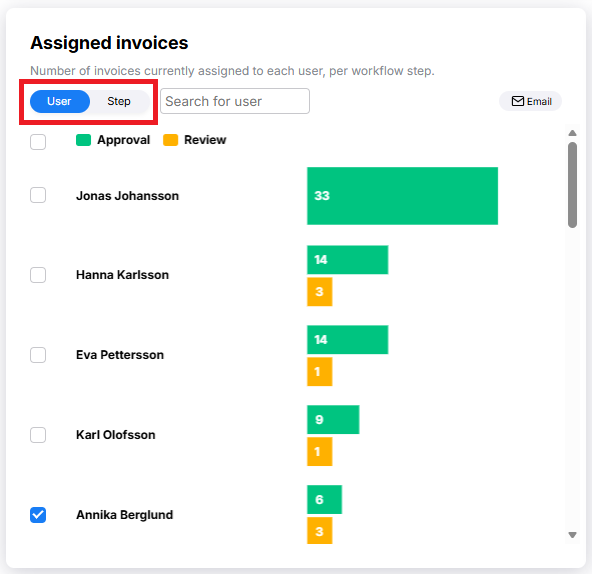
The chart shows the number of invoices currently assigned to each user, and in which step they are located.
Filter the list by typing in the Search for user box.
Click a bar to see a list of these invoices.
Send a reminder to users
Here you can also send a reminder to the users in the list. The Email button is located below the card title, to the right of the search box.
Select the users you want to send to and click 
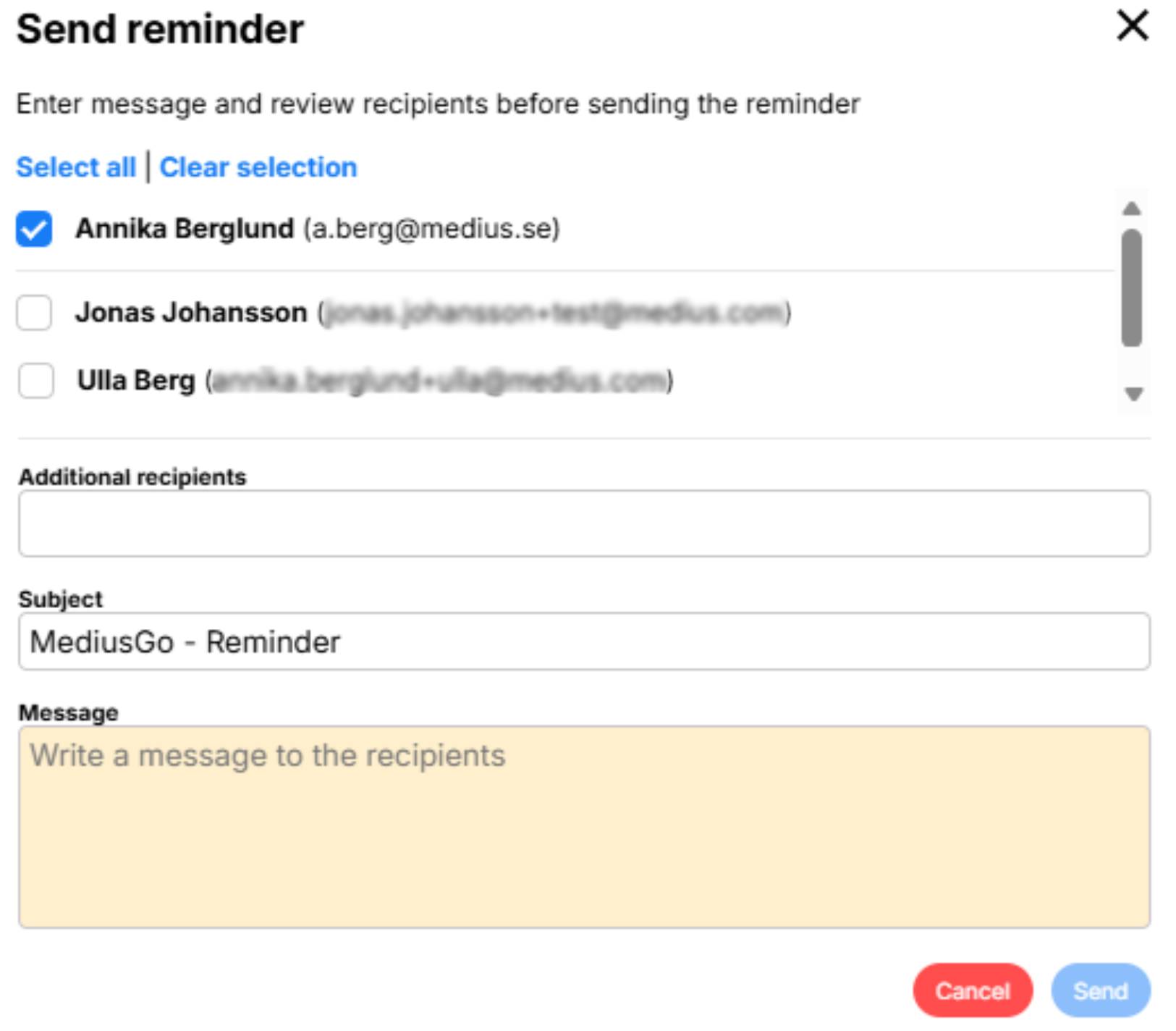
The Send reminder dialog opens. Review the recipients before you send:
- Use Select all or Clear selection to quickly change the selection, or select and clear individual users.
- Add more recipients in the Additional recipients field.
- The subject line is pre-filled with MediusGo - Reminder, but can be changed.
- Write a message to the recipients in the Message field.
Click Send to send the reminder, or Cancel to close the dialog without sending.
The Step view – Invoices by Step
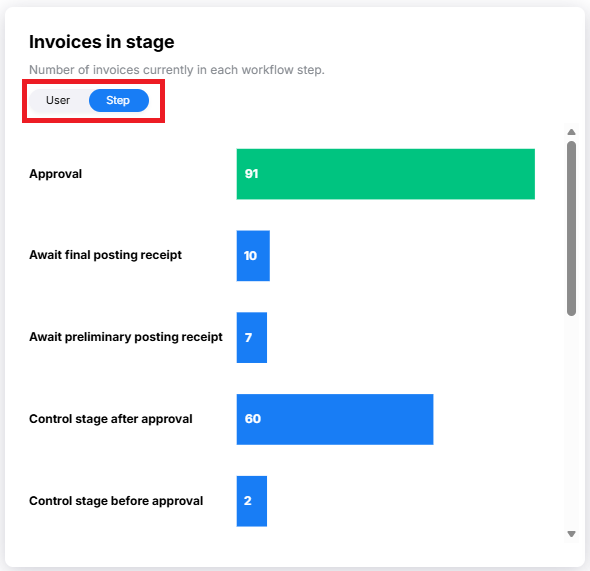
The Invoices by Step chart shows how many invoices are currently in each step.
Click a bar to see a list of these invoices.
Processing Time
The card shows the average processing time per user over the last 6 and 12 months. It gives an overview of how long each user takes on average to handle their invoices.
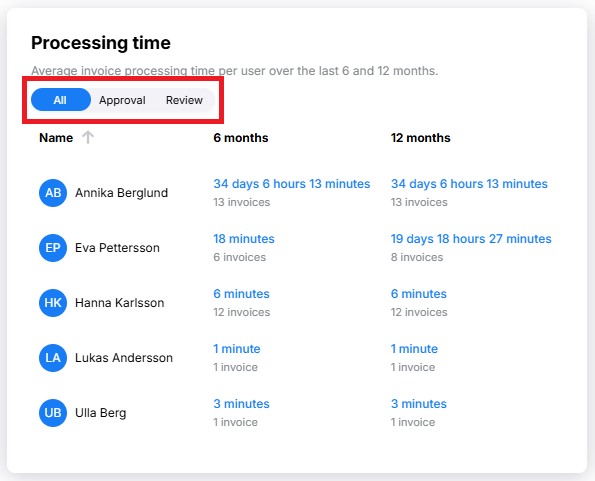
For each user, the following is shown:
- the average processing time for the last 6 months and the last 12 months
- the number of invoices the average is based on in each period
The arrow next to the column heading shows which column the list is sorted by.
Filter by step
Use the toggle at the top of the card to choose which invoices are included in the calculation:
- All – processing time for both review and approval
- Approval – only invoices in approval
- Review – only invoices in review
View the invoices behind a value
Click a user's value in the 6 months or 12 months column and a list of invoices opens, filtered on the selected user's invoices for the chosen period and step.
Top vendors
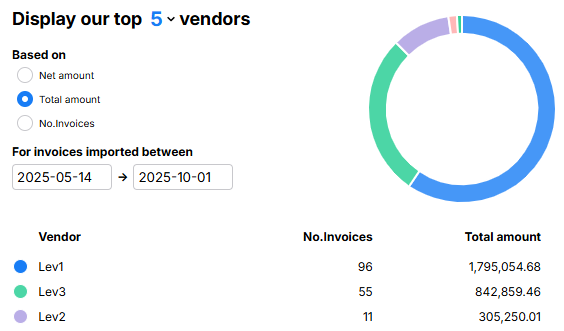
- Select the number of vendors you want to see statistics on.
- Choose whether the figures should be based on net amouunt, total amount or number of invoices.
- Select the date period you want to see.
- Click on the chart to see a list of these invoices.
Autocoded
Percentage of invoices automatically coded. Click on the graph to see statistics for different companies and vendors.

Autoflow
Shows the percentage of invoices that are automatically sent to the correct reviewer and/or approver.
Click on the graph to see statistics per company and vendor.
Please note: If you use control steps in your workflow, the figure may appear lower than expected. Invoices that pass through a control step are counted as manual processing and are therefore not included in the statistics for automatic distribution.
Touchless
Percentage of invoices that have passed through the invoice flow without manual handling. This means that the invoice is coded via coding suggestions and has not stopped in manual steps such as New invoice review, control before approval or control after approval.
Click on the graph to see statistics for different companies and vendors.

Average handle time
How many days does it take for an invoice to go through the entire invoice flow, from arrival day to final posting?
Click on the graph to see statistics for different companies and vendors.
