
What are labels?
Labels allow you to tag invoices so they’re easier to find and filter in the system. The label is saved with the invoice and can be used to both search for and filter invoices.
Labels in the Invoice window
Open an invoice and click the button at the top of the Invoice window to select a label.
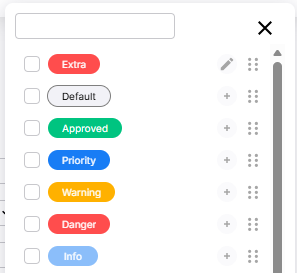 | Standard labelsThere are six standard labels in different colors that can be used by checking the box on the left. The label will then be displayed on the label button in the invoice window and in a separate column on the invoice in the Workqueue window.
|
Create your own labels
It is also possible to create your own labels by clicking on the plus sign next to one of the default labels. Creating labels is a role permission, read more about this below.
Click the plus sign next to a standard label. In the form that opens: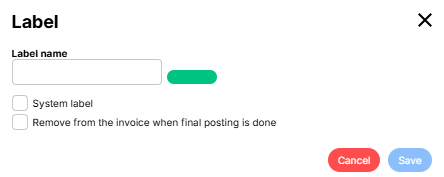
- Enter the label name, this is the text shown on the label.
- Check the System label box to make the label available in all companies. If the box is left blank, the label will only be visible in the company to which the invoice belongs. The System label box is only available to users who have the Label right (Installation) setting enabled at the role level.
- If you want the label to appear only on invoices currently being processed, check the box next to Remove from the invoice when final posting is done. The label will then be removed when the invoice is passed final posting.
Edit or Delete a Label
Click the pencil icon next to the label in the list to open the edit form. There, you can change the text, settings, or delete the label entirely. This action also requires the appropriate role permission.
Labels in the Workqueue window
In the Workqueue window, it is possible to display only invoices with a specific label.
If you don’t see the Label column, click Settings in the black column  , click Columns - Workqueue, and check the box next to Label. You can also drag the column name to the position where you want it.
Once you see the Label column in the invoice list, click on the filter icon  on the right side of the column header and select the label in the drop-down list. By default all labels are shown in the list, select company in the filter to filter out company specific labels.
Permissions for Labels
Permissions for creating/removing labels are set at the role level.
Step 1 – Open the role
- Go to Organisation - Roles and open the role that should have the right.
- Open the role to which you want to assign the permission.
The right to create/edit/delete labels is given per company and is set at Role properties for company - Other access rights.
Step 2 – Set Label Permissions by Company
- Select company on the tab The role's companies
- Click on the tab Other access rights
- Check the box Label Right. This permission grants the right to create, edit, and delete labels within the selected company.
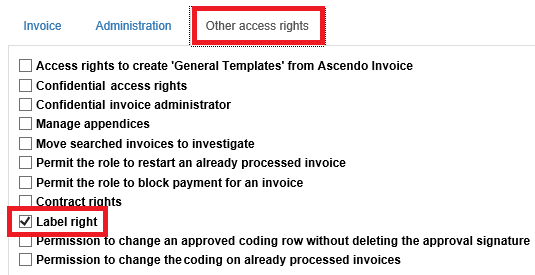
Step 3 – Installation rights (optional)
If the role should also be able to make labels available across all companies (i.e., use the “System Label” checkbox):
- Look at the top of the role form.

- Check the Label right (installation) box.
When this setting is enabled, the “System Label” checkbox becomes visible to users of this role when they create labels.