
On the vendor letter template, you can add a logo, which will then appear at the bottom of the finished letter.
Open the template by clicking the letter icon in the vendor name field.
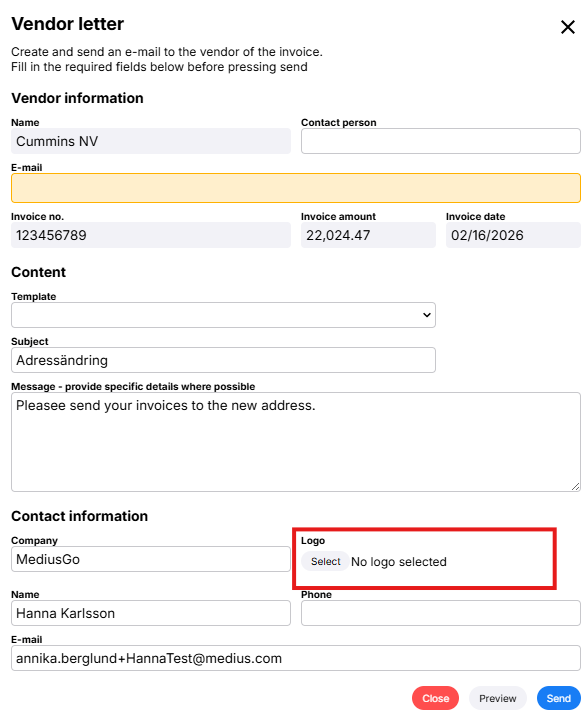
Under Contact Information at the bottom of the form, there is a section titled Logo, which displays the logo associated with the company to which the invoice belongs.
If no logo is displayed, click the Select button to open a new form showing the logos associated with various companies:
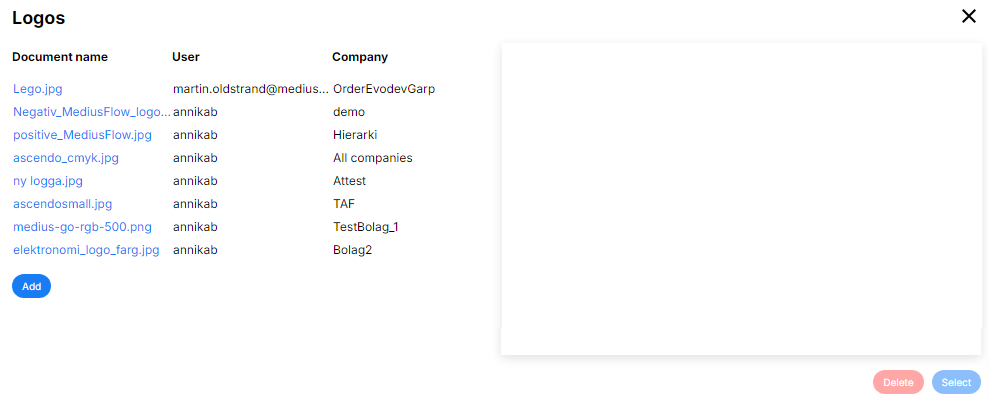
Click Add to add a new logo
 |
|
Then select the logo you want to use and click Select
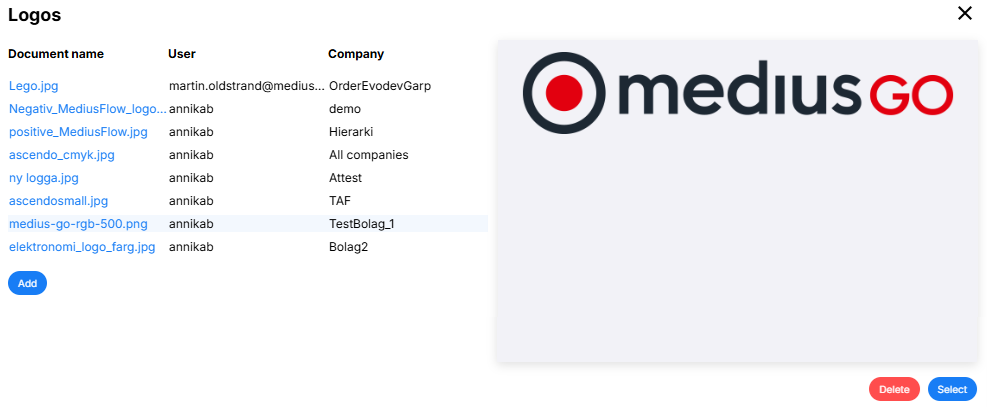
The selected logo will appear on the Vendor letter form

If you want to remove the selected logo from the letter, click on the trash can in the top right corner.